Android tools for Windows
Your Android, on your PC
Droid Bridge connects your Android phone or tablet to your Windows PC over a USB cable or Wi-Fi. Mirror and control the screen, move files, manage apps and read your messages, all in one clear window. No commands to type.
- Free
- No account
- No ads
- Windows 10 and 11
Everything in one window
One app for the phone on your desk
From everyday tasks to the tools enthusiasts reach for. Anything that can wipe data asks you first.
Cable or Wi-Fi
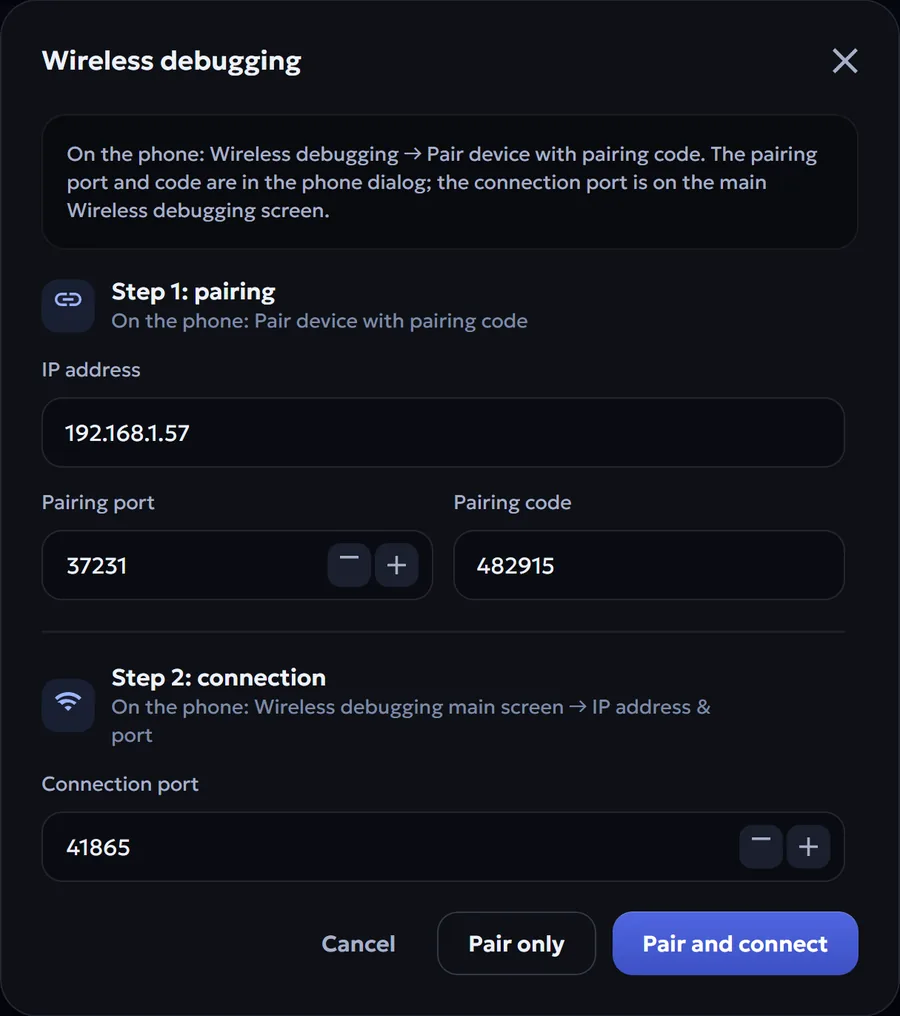
Connect over USB, pair over Wi-Fi with a code on Android 11 and later, or find devices on your network. Saved devices reconnect on their own.
Screen control
See the phone screen on your PC and use it with mouse and keyboard, sound included.
Files
Browse phone storage, push files to the phone and pull them to your PC.
Apps
Install APKs; search apps and disable, enable, clear data or uninstall them.
Messages
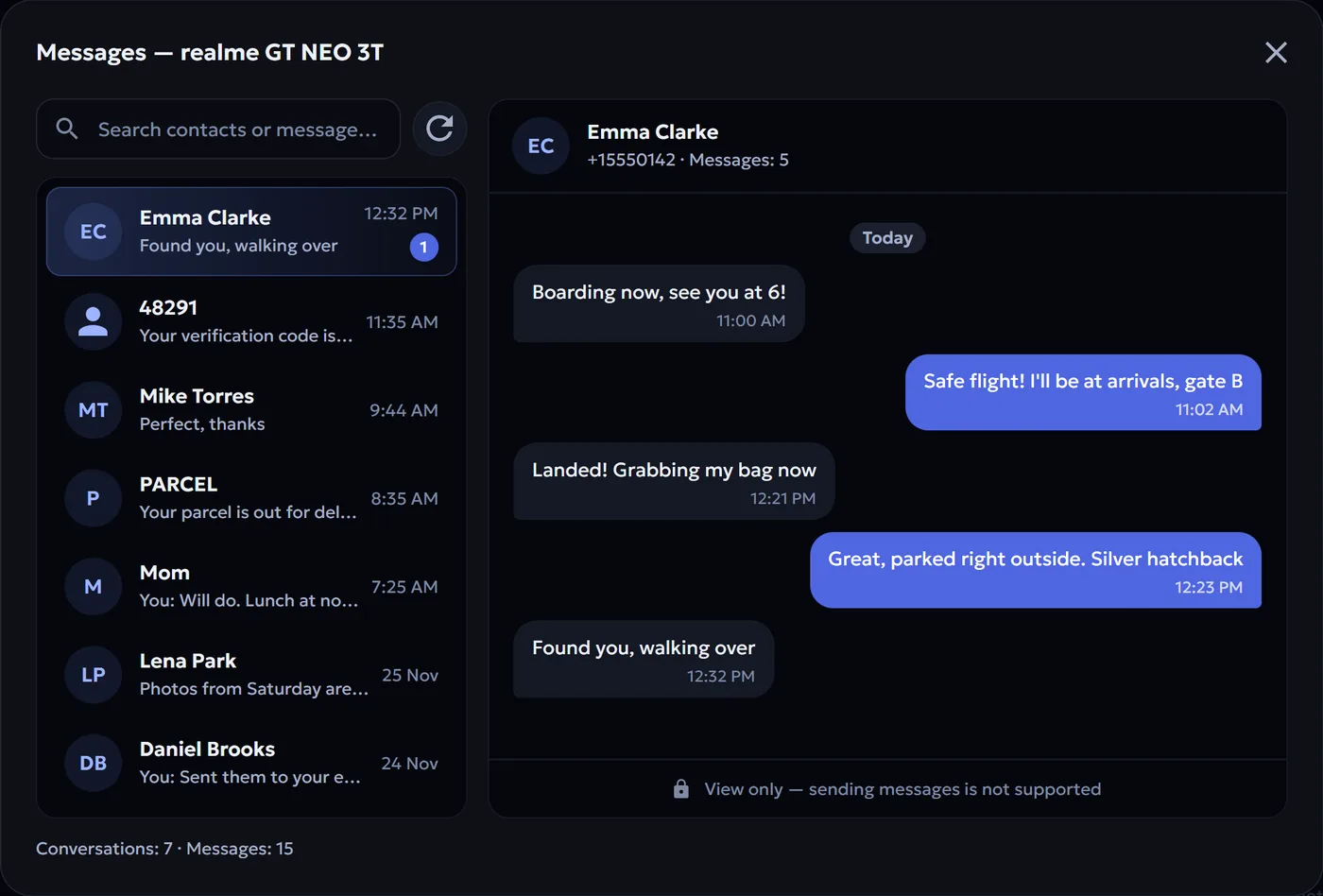
Read and search your SMS conversations on the PC and get a notification when a new one arrives.
Backup and restore
Back up APKs, photos, videos, music and documents. With root, app data, Wi-Fi networks and partitions too.
Flashing and recovery
A fastboot flashing queue, slot switching, OTA sideload and TWRP tools, with a clear view of every step.
Made for daily use
Runs in the tray, can start with Windows, notifies you when devices come and go. English and Russian.
Dashboard
Your device at a glance
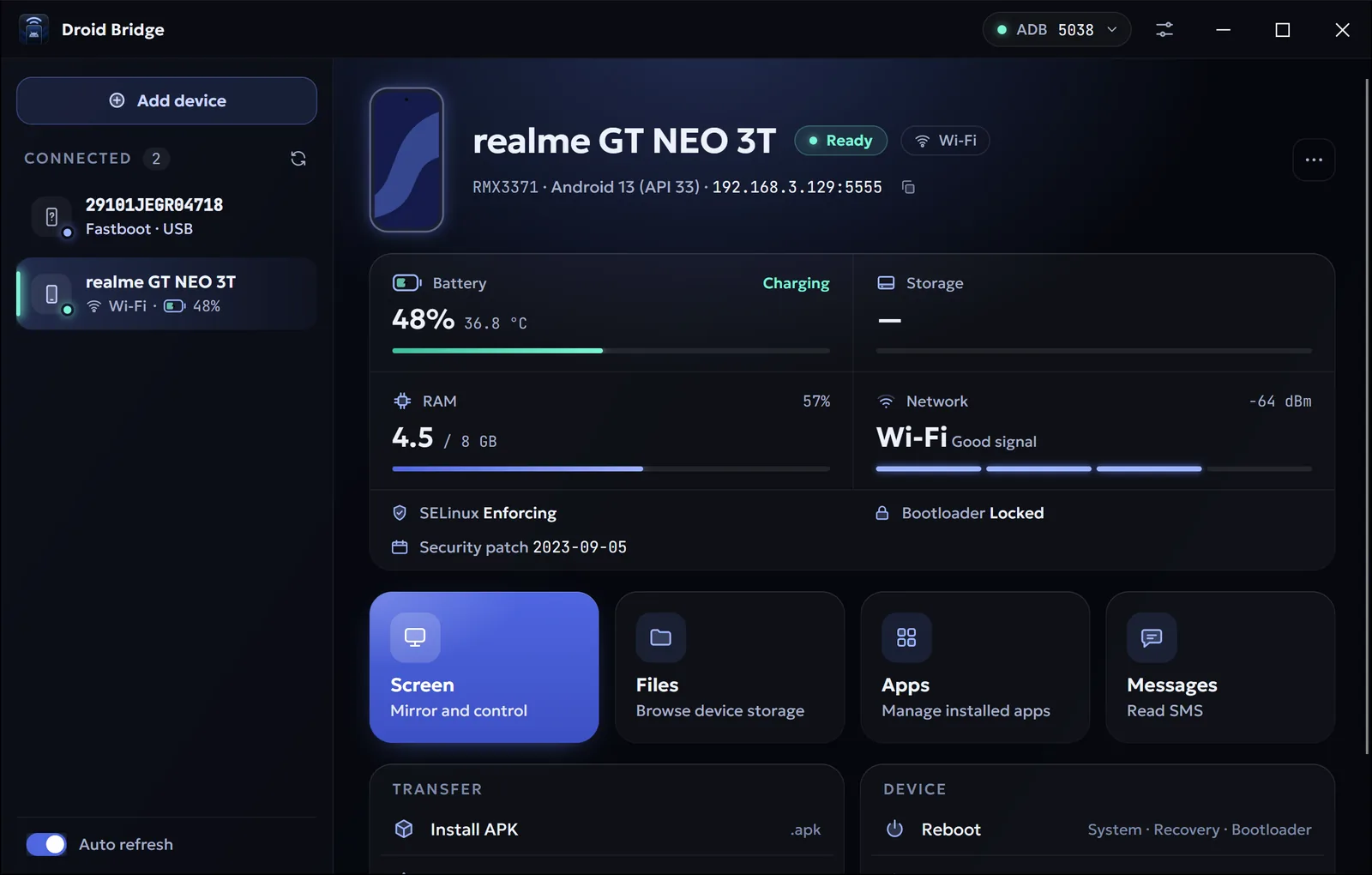
Battery and temperature, storage, RAM, network and signal, Android version and security patch, live. Bootloader state, active slot and mode are right there too: system, recovery, fastboot or sideload.
Screen
Control your phone from the PC
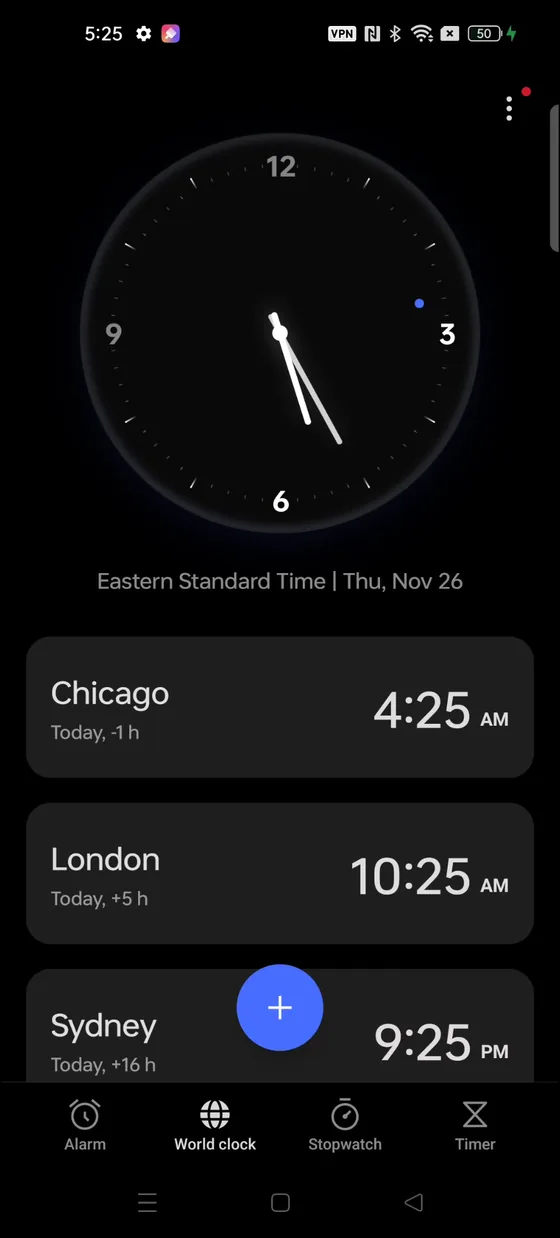
Open the phone screen in a window and use it with your mouse and keyboard, with the phone's sound on your PC. Choose window options such as always on top, borderless or fullscreen, and keep the device awake while you work.
Screen mirroring uses scrcpy, a free open-source tool. Droid Bridge can download it for you on first start.
Files
Phone files on your PC
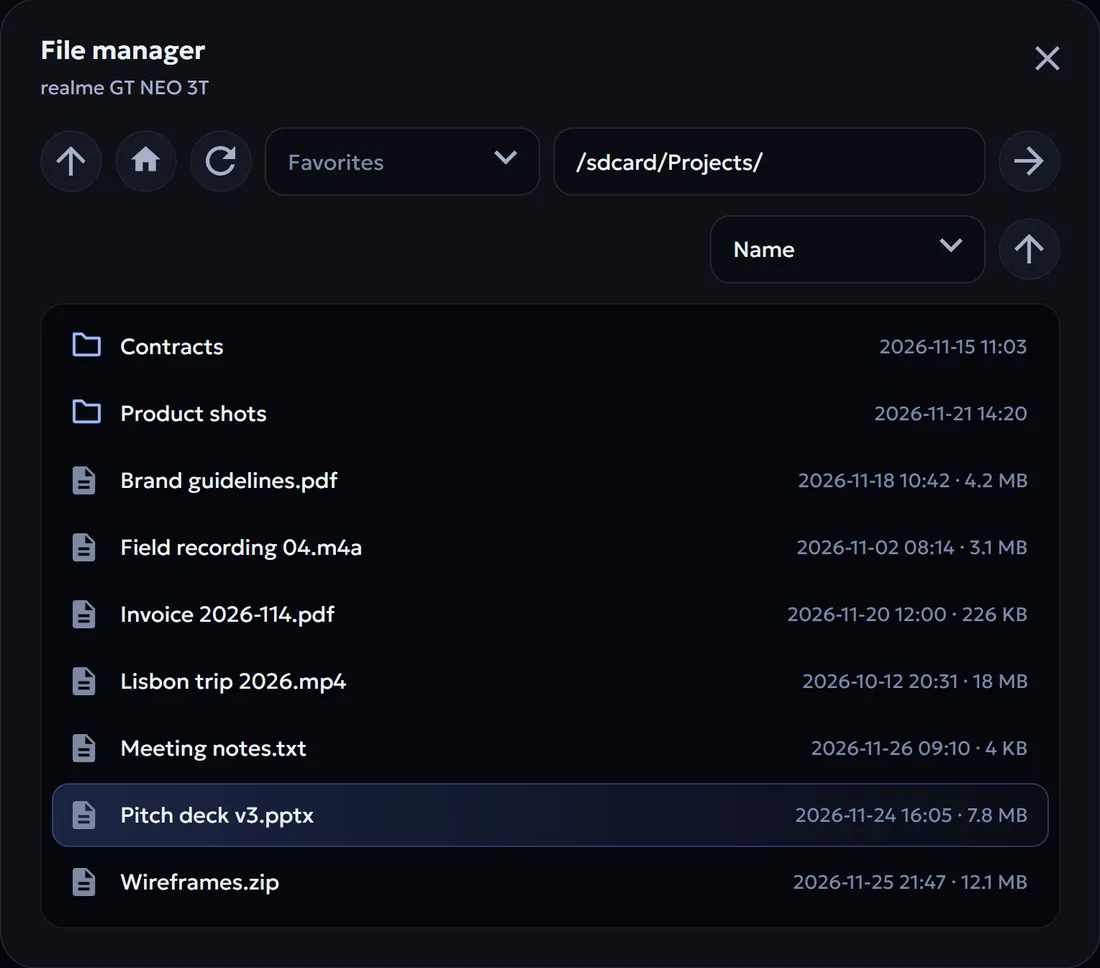
Browse phone storage with folders you use most at hand, sort by name, date or size, and move files in both directions.
Apps
Manage every app
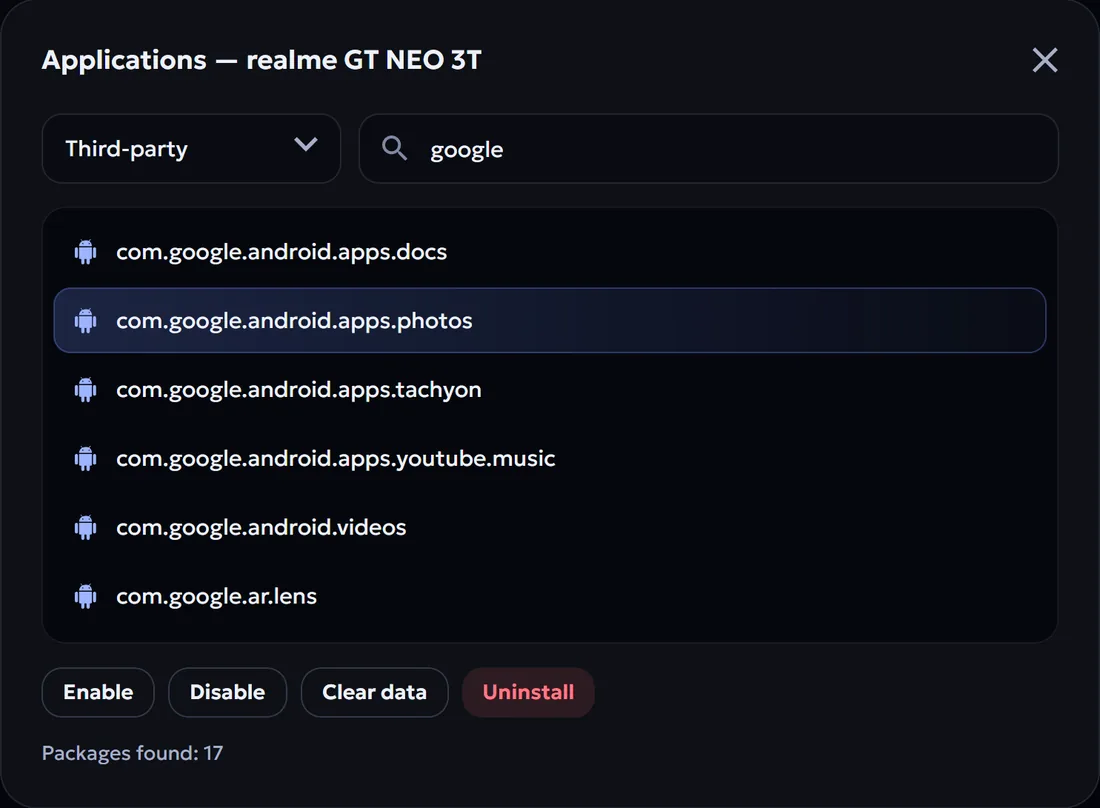
Search installed apps, show system or third-party ones, then disable, enable, clear data or uninstall. Install an APK from your PC in one step.
Messages
Read your SMS on the PC
Read and search your conversations on a big screen and get a Windows notification when a new message arrives.
You choose whether notifications show the message text or only the sender, for example to keep one-time codes off the screen.
Wireless
No cable needed
Pair over Wi-Fi with a code on Android 11 and later, or let Droid Bridge find devices on your network. Saved devices reconnect automatically when they show up.
For enthusiasts
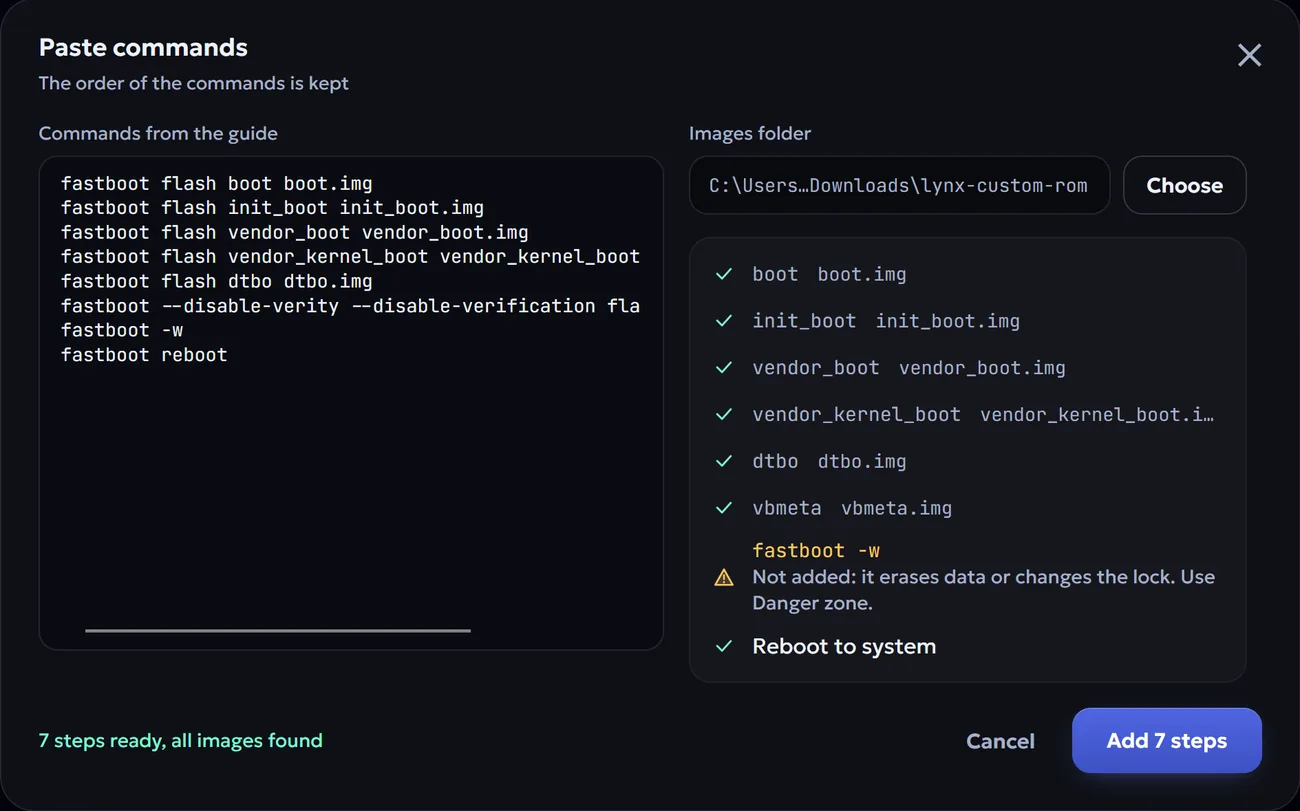
Flash from a guide in one paste
Paste the fastboot commands from a firmware guide or drop the image files. The order is kept, every image is checked before anything starts, and you see each partition as it goes.
Flashing queue
Drop .img files or paste commands; the order is kept and missing images are flagged.
Slots and reboots
Switch the active slot; reboot to system, recovery, bootloader or fastboot.
OTA sideload
Sideload an update with a SHA-256 check first.
TWRP
Create a backup, install a zip, wipe cache, dalvik or data.
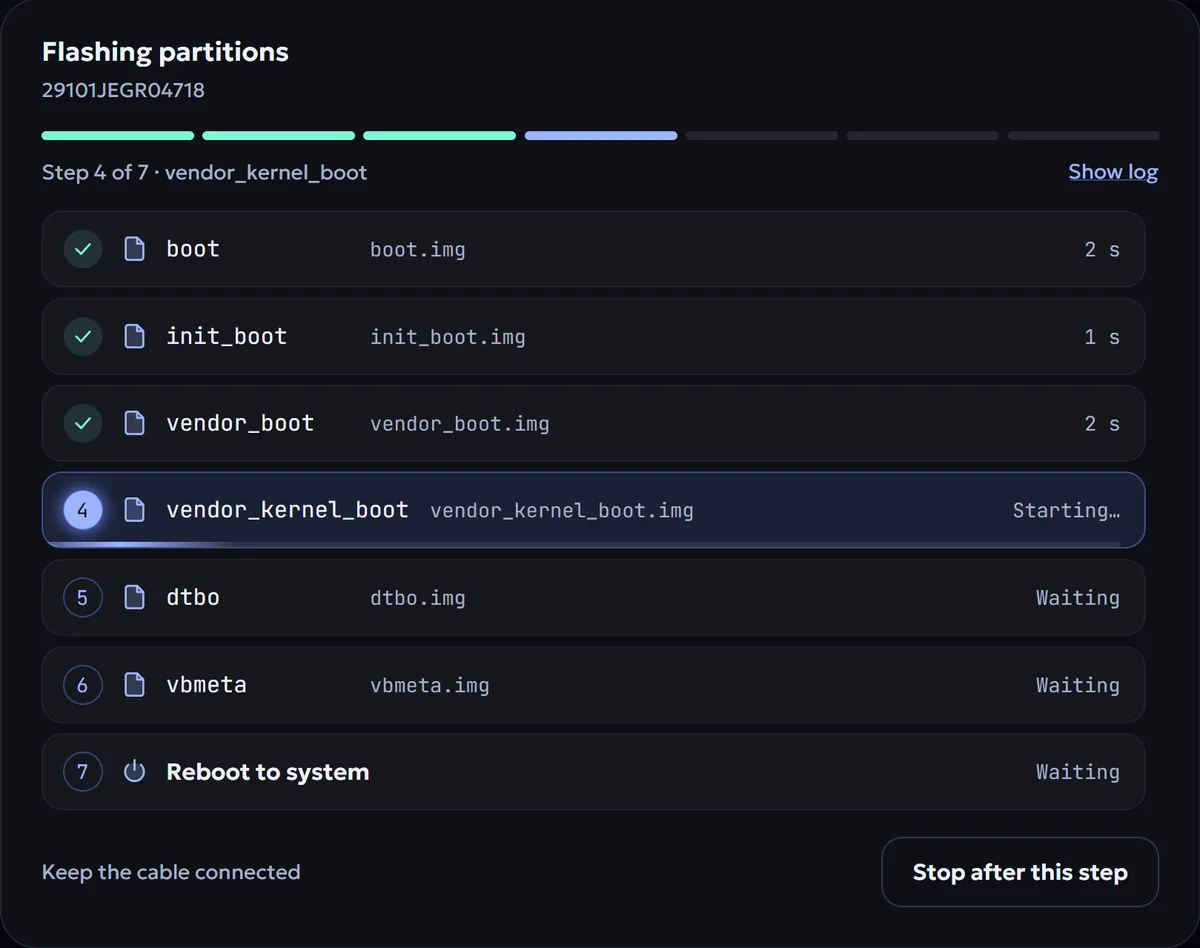
Step by step, in plain sight
Progress for each partition. Stop after the current step, skip a step or retry it.
Anything that can wipe data asks you first. Flashing the wrong images can make a device unusable. Use images made for your exact model and keep your data backed up.
Privacy
Your data stays between your phone and your PC
- No account, no ads, no analytics.
- Files, messages and backups go only between your phone and your PC.
- The app goes online only to download the tools you choose to install and, when you ask, to find a photo of your device model.
Get started
Up and running in minutes
Install Droid Bridge
Get it free from Microsoft Store on Windows 10 or Windows 11.
Get the tools
On first start, Droid Bridge offers to download the official Android platform tools (adb and fastboot) and scrcpy, or uses the ones you already have.
Connect your phone
Turn on USB debugging in the phone's developer options, then plug in a cable or pair over Wi-Fi.
Questions, answered
Do I need root?
No. Screen control, files, apps, messages, flashing and most backups work without root. Root is needed only to back up app data, saved Wi-Fi networks and partitions.
Can I connect without a cable?
Yes. On Android 11 and later you can pair over Wi-Fi with a pairing code. Droid Bridge can also find devices on your local network, and saved devices reconnect when they appear.
What is Droid Bridge Companion?
An optional app for the phone that comes with Droid Bridge and is installed from the PC in one click. It adds live status and media controls on the PC: play, pause, next and previous. Everything else, messages included, works without it.
Can flashing break my phone?
Flashing replaces system partitions, so wrong or damaged images can leave a device unable to start, and some steps erase data. Droid Bridge checks the images, keeps the order from your guide and asks before anything that can wipe data, but the choice of images is yours. See the terms of use.
Does Droid Bridge send my data anywhere?
No. Your files, messages, app lists and backups stay on your phone and your PC. The privacy policy lists the few times the app goes online and why.
Which Windows versions are supported?
Windows 10 (version 2004 or later) and Windows 11. Your phone needs Android with USB debugging turned on.
Bring your Android to your desk
Free on Microsoft Store. No account, no ads.